Managing GSTR-2B data manually in Tally can be time-consuming, especially when the downloaded GST portal file does not include GST rate-wise information. Many accountants spend hours identifying GST rates, creating ledgers, and entering purchase vouchers manually.
With Fastinflow Excel to Tally Software, you can automatically generate GST rate-wise GSTR-2B data and import it into Tally in just a few minutes.
In this guide, we’ll show you the complete process.
Import GSTR-2B into Tally With Rate Wise
Why Use Fastinflow for GSTR-2B Import?
Fastinflow automates the entire import process and eliminates manual work.
Key Features
✅ Import GSTR-2B into Tally in minutes
✅ Automatically Generate GST Rate-Wise Data
✅ Supports Tally Prime
✅ Automatic GST Calculation
✅ Automatic Round-Off
✅ Auto Missing Ledger Creation
✅ AI Ledger Matching using GST Number
✅ One-Time Mapping
✅ Supports Multi GST Rates in a Single Invoice
✅ Custom Voucher Type Support
✅ Import Thousands of Records in One Click
Step 1: Download GSTR-2B & GSTR2A Files
First, download the following files from the GST Portal:
- GSTR-2B
- GSTR-2A
Tip: Save both files in the same folder.
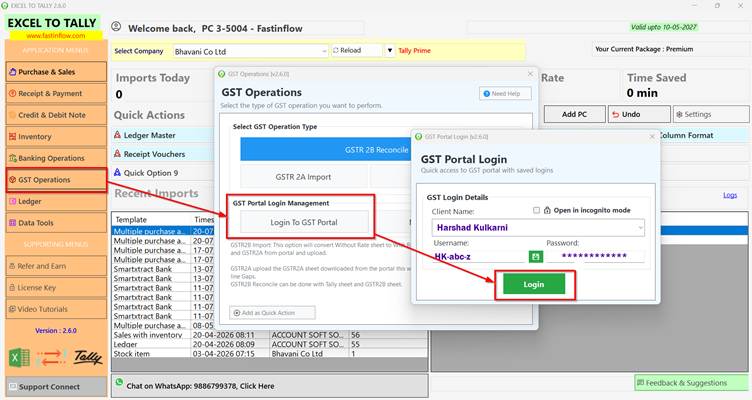
You can also log in to the GST Portal directly from Fastinflow Software and download the files.
Step 2: Open GSTR-2B Import
Open Fastinflow Excel to Tally Software.
Go to
GST Operation → GSTR-2B Import
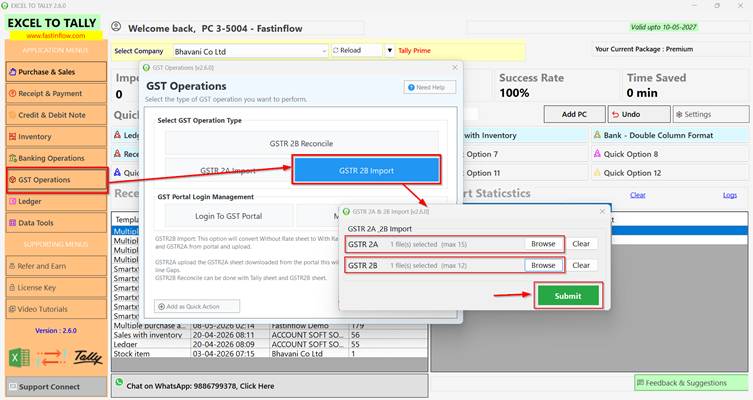
Select Both GST Files
Browse and select:
- GSTR-2B File
- GSTR-2A File
Click Submit.
Fastinflow automatically creates a new Excel file containing GST Rate-Wise GSTR-2B Data. Simply save the generated Excel file.
Why Are Some Entries Showing “Not Found”?
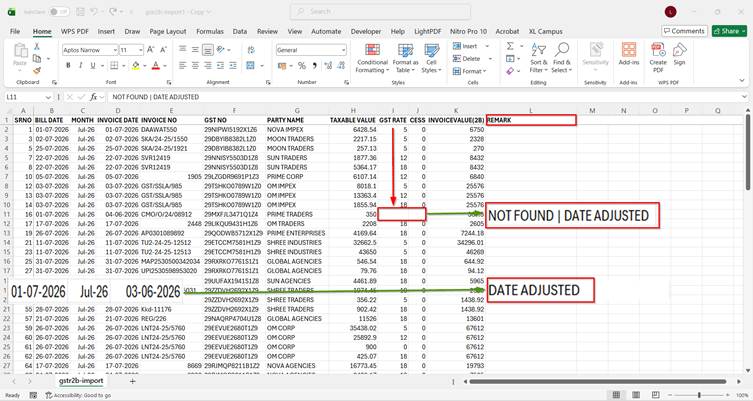
Sometimes you’ll notice that a few transactions are marked as Not Found or Date Adjusted. This simply means those invoices are not available in the uploaded GSTR-2A file.
These invoices usually belong to:
- Previous Month
- Older GST Period
How to Import Not Found Entries
Simply upload the previous 3–4 months’ GSTR-2A files.
Fastinflow supports uploading up to 15 GSTR-2A files, allowing the software to search across multiple months and identify the correct GST rates automatically.
Understanding the “Date Adjusted” Status in GSTR-2B Import
When importing GSTR-2B data into Tally, you may notice that some transactions are marked with the “Date Adjusted” status. This is a normal feature in Fastinflow and helps ensure your data is imported correctly for the selected accounting period.
What Does “Date Adjusted” Mean?
The “Date Adjusted” status indicates that the supplier’s invoice belongs to a previous month, but the supplier uploaded that invoice in the current month’s GSTR-2B.
Since GSTR-2B is generated based on the supplier’s filing period, invoices from earlier months can sometimes appear in a later month’s GSTR-2B if they were uploaded late.
Example
Suppose:
- Supplier Invoice Date: 03-06-2026
- Supplier Uploaded Invoice: July 2026 – GSTR-2B
Although the original invoice is dated 03-06-2026, it appears in the July GSTR-2B because it was uploaded by the supplier in July.
To ensure the transaction is imported correctly into the current month’s accounting period, Fastinflow automatically adjusts the voucher date to the 1st day of the current month.
For example:
| Original Invoice Date | Appears in GSTR-2B | Imported Date in Tally |
| 03-06-2026 | July 2025 | 01-07-2026 |
This adjustment helps maintain consistency with the selected GST period and allows the data to be imported without errors.
Why Does Fastinflow Adjust the Date?
Fastinflow automatically performs this adjustment to:
- ✅ Import entries into the correct GST period.
- ✅ Prevent accounting period mismatches.
- ✅ Handle late-uploaded supplier invoices automatically.
- ✅ Ensure smooth and accurate GSTR-2B imports into Tally.
Is the Original Invoice Lost?
No. The original supplier invoice details remain unchanged. Only the voucher date used for import is adjusted so the transaction aligns with the current month’s GSTR-2B and accounting period.
Conclusion
The “Date Adjusted” status is an intelligent feature of Fastinflow Excel to Tally Software that automatically handles late-uploaded supplier invoices. By adjusting the import date to the first day of the current accounting month, Fastinflow ensures your GSTR-2B data is imported accurately, efficiently, and without manual intervention.
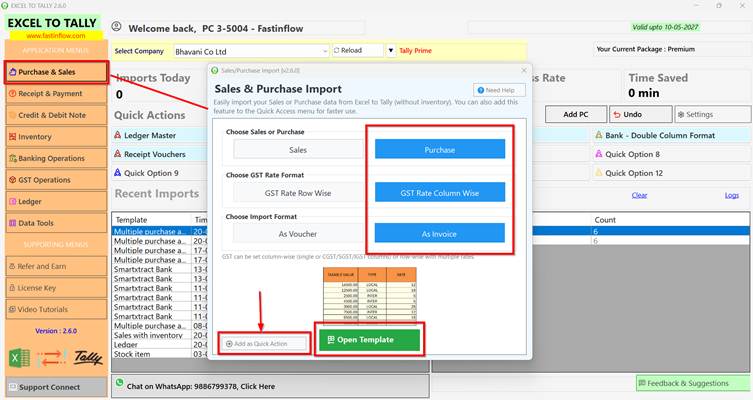
Step 3: Import Generated Excel into Tally
Now go to
Purchase & Sale → Open Template
You can also:
- Add Template to Quick Action
- Rename the Template
This helps you open the template directly from the dashboard.
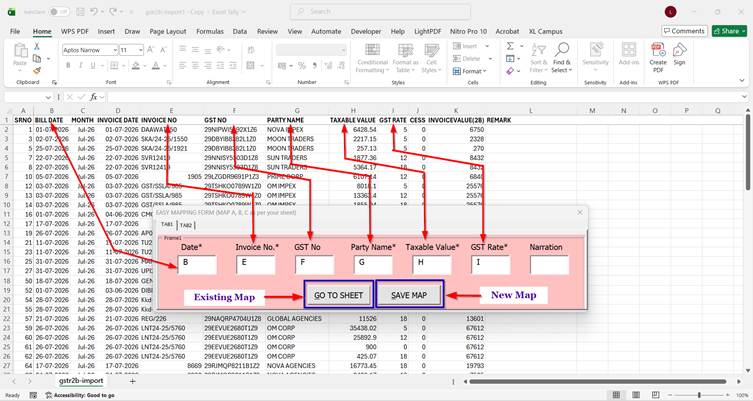
Step 4: One-Time Mapping
If you’re importing this sheet for the first time, complete the mapping.
Simply map the required columns from your Excel sheet.
Click Save Map.
Enter any map name and save it.
Already Mapped?
No problem.
Simply click Go to Sheet.
There is no need to map the same sheet again.
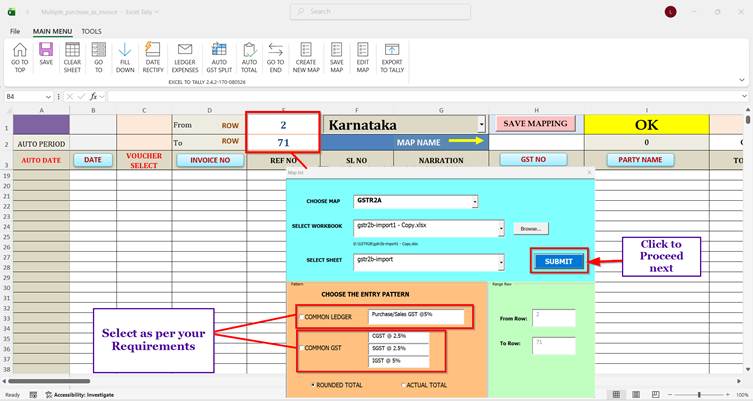
Step 5: Select Row Numbers
Enter:
- Starting Row Number
- Ending Row Number
Press Enter.
Now select:
- Saved Map Name
- Ledger Type
Choose whether you want:
- GST Rate-Wise Ledgers
- Common Ledger
Click Submit.
Automatic Data Processing
Fastinflow automatically processes the entire sheet.
The software performs:
- GST Calculation
- Bill Total Calculation
- Round-Off
- Multi GST Rate Calculation
- Purchase Entry Preparation
If an invoice contains multiple GST rates, the software calculates everything automatically.
No manual formulas are required.
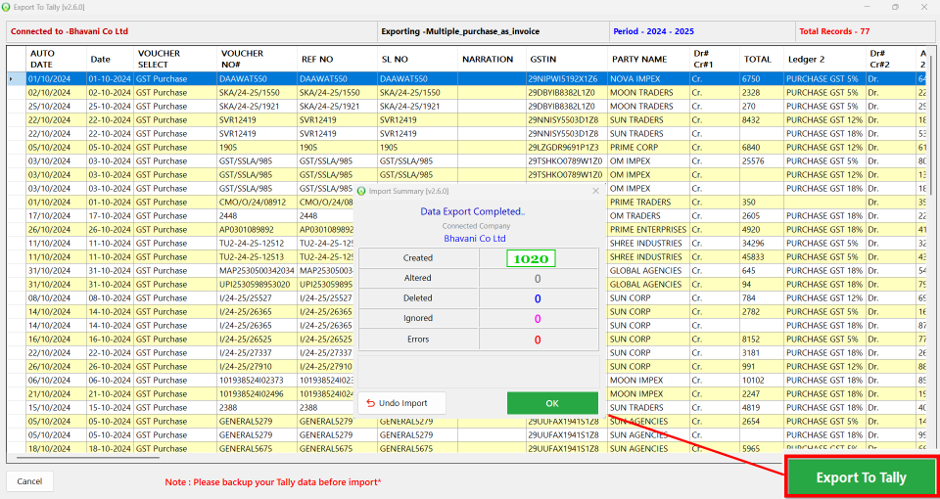
Step 6: Export to Tally
Click Export to Tally.
Before importing, Fastinflow automatically:
- Detects Missing Ledgers
- Creates Missing Ledgers
- Matches Existing Ledgers
- Matches Parties Using GST Number
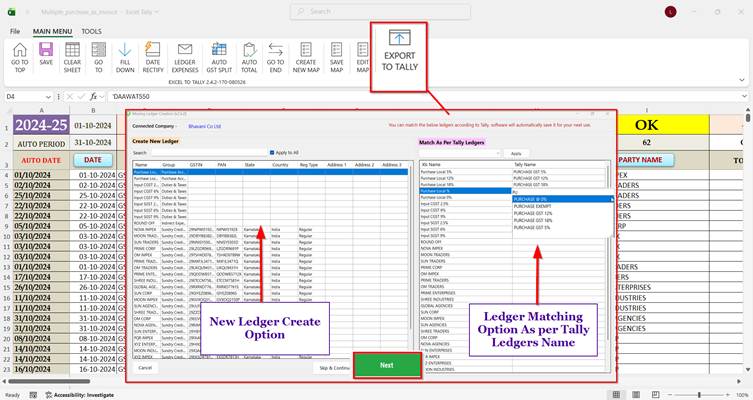
Even if your Excel sheet contains a different party name, Fastinflow can automatically match it with the existing Tally ledger using the GST Number.
Finally,
Click:
Next → Export to Tally
Done!
Your GSTR-2B data is now successfully imported into Tally.
Benefits of Using Fastinflow
✔ Save Hours of Manual Work
✔ 100% Accurate Import
✔ No Copy-Paste Required
✔ Automatic Ledger Matching
✔ Automatic GST Calculation
✔ Automatic Round-Off
✔ One-Time Mapping
✔ Faster GST Reconciliation
✔ Supports Large Excel Files
✔ Works with Tally Prime
Frequently Asked Questions FAQ’s
Can I import GSTR-2B into Tally Prime?
Yes. Fastinflow fully supports Tally Prime and enables fast, accurate GSTR-2B imports.
Does Fastinflow generate GST rate-wise data automatically?
Yes. Fastinflow automatically generates GST rate-wise details using the GSTR-2YEA file before import.
What does “Not Found” mean?
“Not Found” means the invoice is not available in the uploaded GSTR-2YEA file. Upload previous months’ GSTR-2YEA files (up to 15 files) to retrieve the missing GST rate.
What does “Date Adjusted” mean?
The “Date Adjusted” status indicates that the supplier uploaded the invoice in the current month’s GSTR-2B, even though the original invoice belongs to a previous month. Fastinflow automatically adjusts the voucher date to the first day of the current month so it imports correctly into Tally.
Do I need to map every time?
No. Fastinflow saves your mapping. Simply click Go to Sheet to reuse the saved mapping.
Can Fastinflow create missing ledgers?
Yes. The software automatically detects and creates missing ledgers before exporting data to Tally.
Can Fastinflow match ledger names automatically?
Yes. Fastinflow matches existing Tally ledgers using the supplier GST Number, even if the ledger names are different.
Does Fastinflow calculate GST automatically?
Yes. GST calculation, bill totals, and round-off are completed automatically during the import process.
Can I import invoices with multiple GST rates?
Yes. Fastinflow fully supports invoices containing multiple GST rates and automatically calculates GST for each rate.
Download Fastinflow Today
Simplify your GST accounting and automate your Tally imports with Fastinflow.
🌐 Website: www.fastinflow.com
Call/WhatsApp – 9886799378
Experience faster, smarter, and more accurate Excel-to-Tally imports with Fastinflow.