Introduction
Most people don’t struggle with importing data into Tally…
They struggle with getting the Excel format right.
Even a small mistake in format can trigger the following:
- Import failures
- Missing ledger errors
- Incorrect GST calculations
If you’ve faced these issues, you’re not alone.
In this guide, you’ll learn the correct Excel formats for Tally import so your data uploads smoothly without errors.
What is Excel to Tally Automation?
Excel-to-Tally automation allows you to directly import the following:
- Ledgers
- Stock items
- Purchase & sales entries
- GST details
- Inventory transactions
All in a few clicks — no coding required.
But for this to work perfectly, your Excel file must be structured correctly.
Why Excel Format Matters in Tally Import
Tally reads data in a specific structure.
If your Excel file is not properly formatted:
- Columns may not match
- GST may calculate incorrectly
- Vouchers may fail to import
👉 That’s why using the right format is critical.
Types of Data You Can Import (With Proper Format)
With Excel to Tally software, you can import the following:
Masters
- Ledger Master
- Item Master
- Stock Group
Transactions (With Inventory)
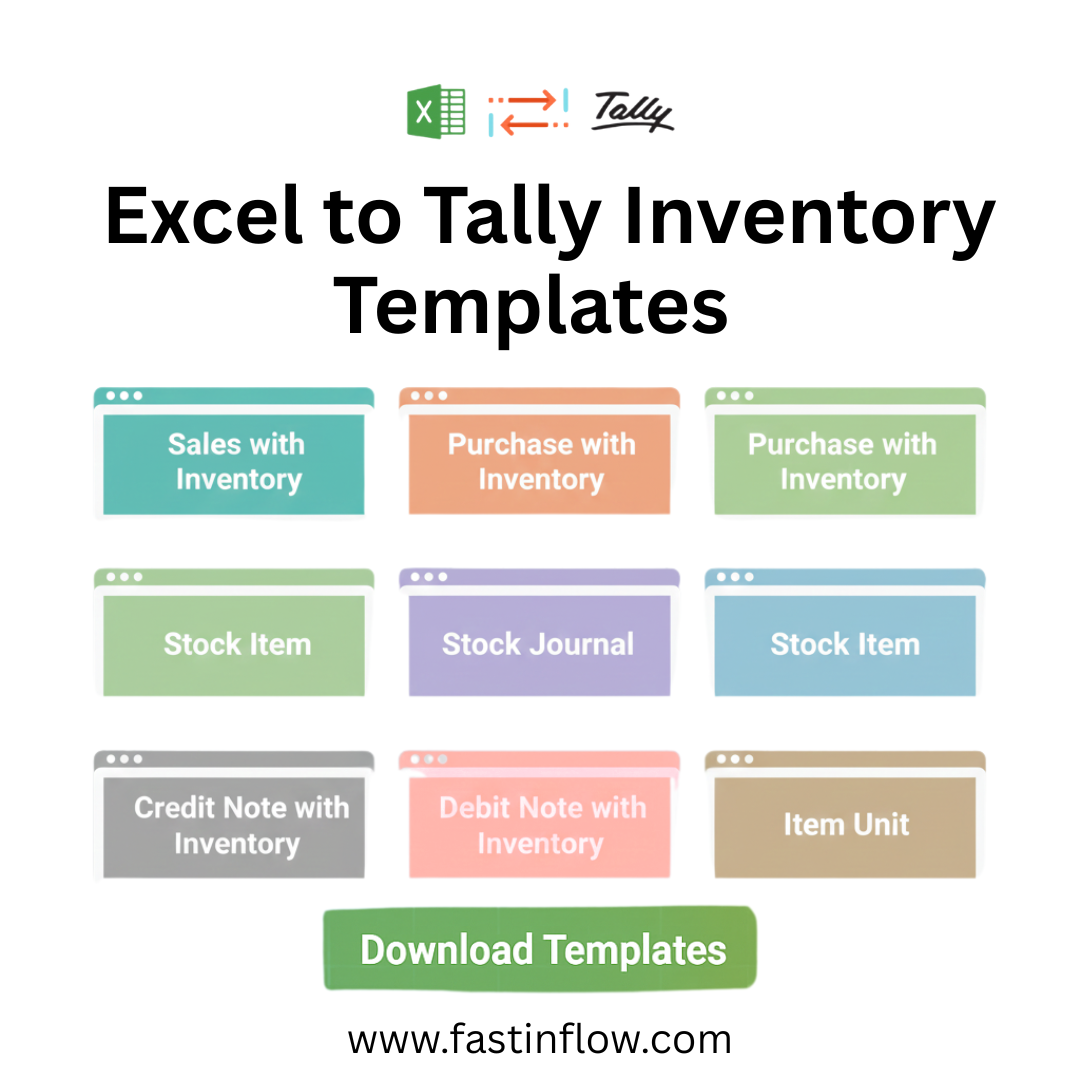
- Sales with Inventory
- Purchase with Inventory
- Sales as Invoice
- Purchase as an invoice
- Multiple Sales
- Multiple Purchase
- Multiple Sales as Invoice
- Multiple Purchases as Invoice
Vouchers
- Receipt & Payment Voucher
- Journal Voucher
- Credit Note
- Debit Note
Banking
- Bank Statement
Advanced
- Multiple Task processing
👉 All of this works smoothly when your Excel format is correct.
Example: Ledger Import Format
A simple Excel ledger should include columns like
- Ledger Name
- Group
- GSTIN
- State
- Opening Balance
👉 If any of these are missing or incorrect, Tally may reject the import.
Example: Sales Entry Format
For sales entries, your Excel sheet should include the following:
- Date
- Party Name
- Invoice Number
- Item Name
- Quantity
- Rate
- GST Rate
👉 Proper structure ensures correct voucher creation in Tally.
Example: Purchase with Inventory Format
- Supplier Name
- Purchase Ledger
- Item Details
- Quantity
- Tax Rate
- Amount
👉 This is important for inventory-based businesses.
Common Mistakes in Excel Formatting
❌ Missing Ledger Names
✔ Always match with Tally ledger names
❌ Wrong GST Structure
✔ Use proper GST columns and mapping
❌ Inconsistent Column Names
✔ Keep headers clean and fixed
How Excel to Tally Software Solves Format Issues
A good Excel to Tally tool helps you avoid all these problems:
✔ Sheet Mapping
Map columns once—no need to repeat
✔ Missing Ledger Detection
Automatically finds and fixes missing ledgers
✔ Auto GST Handling
Applies correct GST rates
✔ Auto Fetch GSTIN
Pulls party details instantly
👉 This makes your import process smooth and error-free.
Benefits of Using Correct Excel Format
- Faster imports
- No data rejection
- Accurate GST calculation
- Clean accounting records
- Better reporting
Who Should Read This Guide?
- Accountants handling bulk data
- CA firms managing multiple clients
- Businesses using Excel + Tally
- Anyone facing import errors
Conclusion
Most Excel to Tally errors don’t happen because of the software…
They happen because of wrong Excel formatting.
Once your format is correct, everything becomes the following:
- Faster
- Easier
- Error-free