Purchase Without Inventory Excel to Tally import is one of the fastest ways to save time and eliminate manual data entry. In this tutorial, you’ll learn how to import Purchase Without Inventory vouchers from Excel into Tally using Fastinflow Excel to Tally Software.
Managing purchase entries manually in Tally can be time-consuming, especially when you have hundreds or thousands of transactions in Excel. If you’re looking for a faster and error-free way to import Purchase Without Inventory data into Tally, Fastinflow Excel to Tally Software makes the entire process simple and efficient. In this guide, we’ll show you how to import Purchase Without Inventory vouchers from Excel into Tally in just a few easy steps
Why Choose Fastinflow?
FastInflow is more than just an Excel to Tally import tool. It is an intelligent accounting automation platform that helps accountants, businesses, and Chartered Accountants save time by automating repetitive accounting tasks.
With Fastinflow, you can:
- Import Excel data directly into Tally
- Detect and create missing ledgers automatically
- Perform one-time smart ledger matching
- Import Purchase, Sales, Journal, Payment, Receipt, Contra, and other voucher types
- Reduce manual data entry and errors
- Save hours of accounting work
Supported Excel Formats
One of the biggest advantages of Fastinflow is its flexibility. The software supports multiple Excel formats, including:
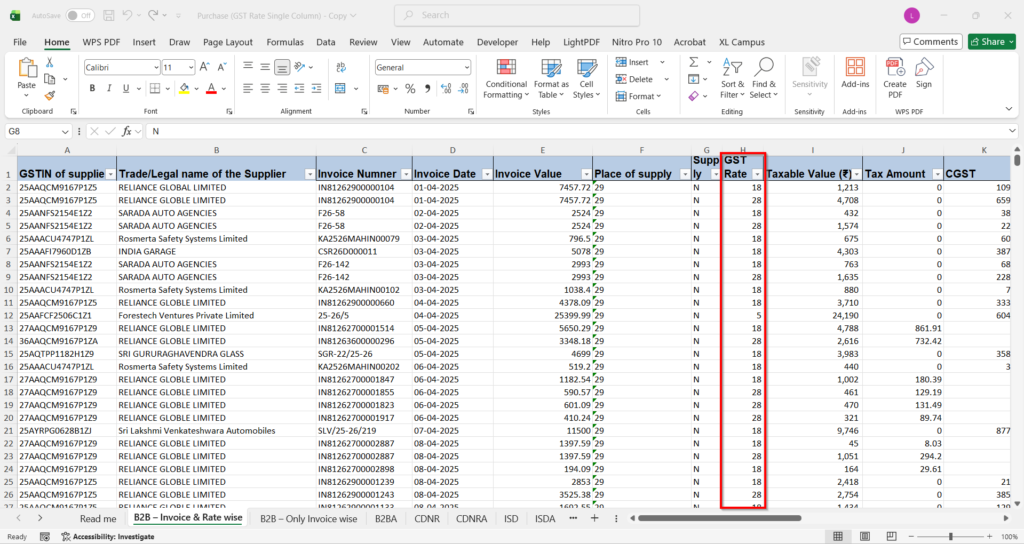
Vertical GST Rate Format
In this format, all GST rates are available in a single column.
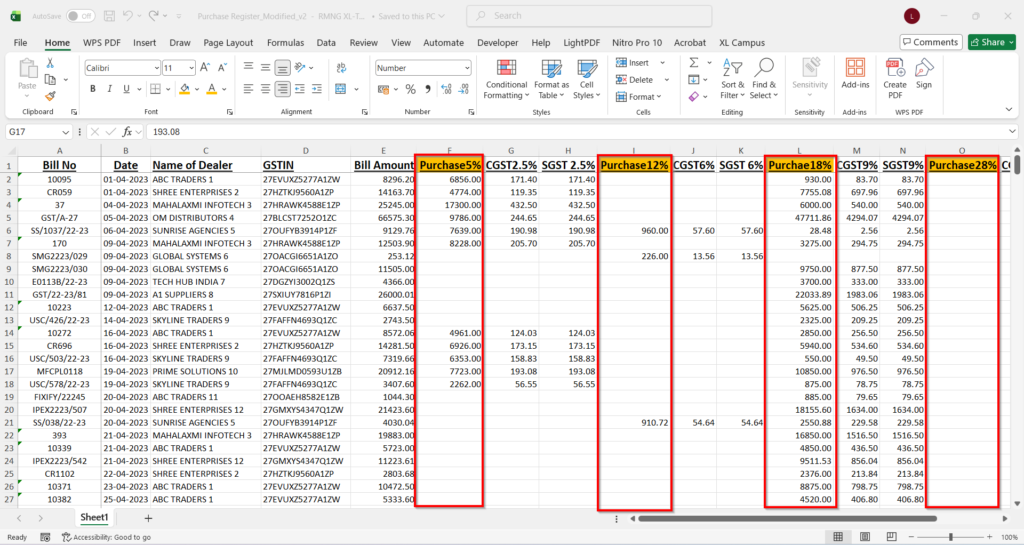
Column-wise GST Rate Format
Many businesses maintain separate columns for different GST rates.
FastInflow supports both formats, allowing you to import your data without modifying your Excel sheet.
Step 1: Open FastInflow Excel to Tally Software
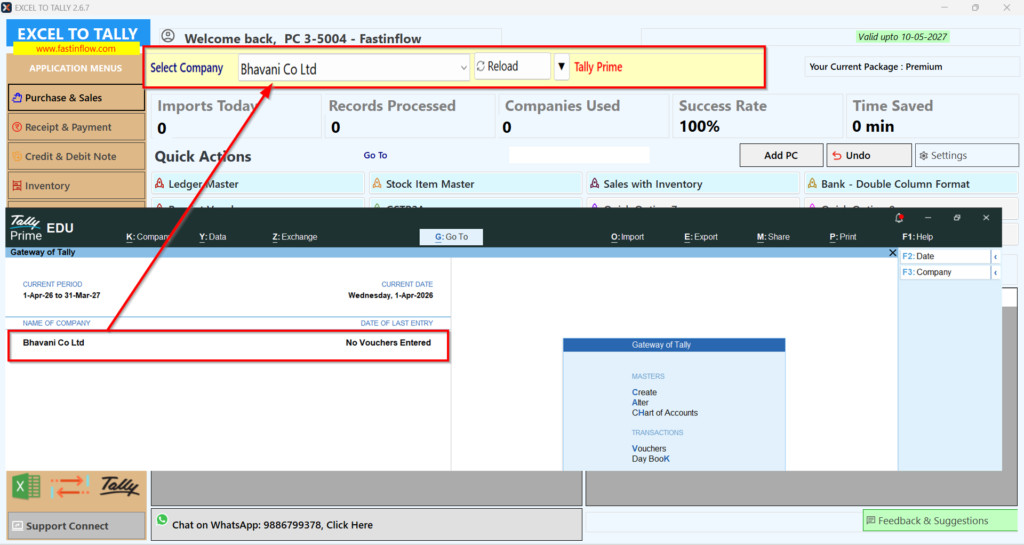
Launch FastInflow.
The software automatically detects the Tally company that is currently open, so no manual connection is required.
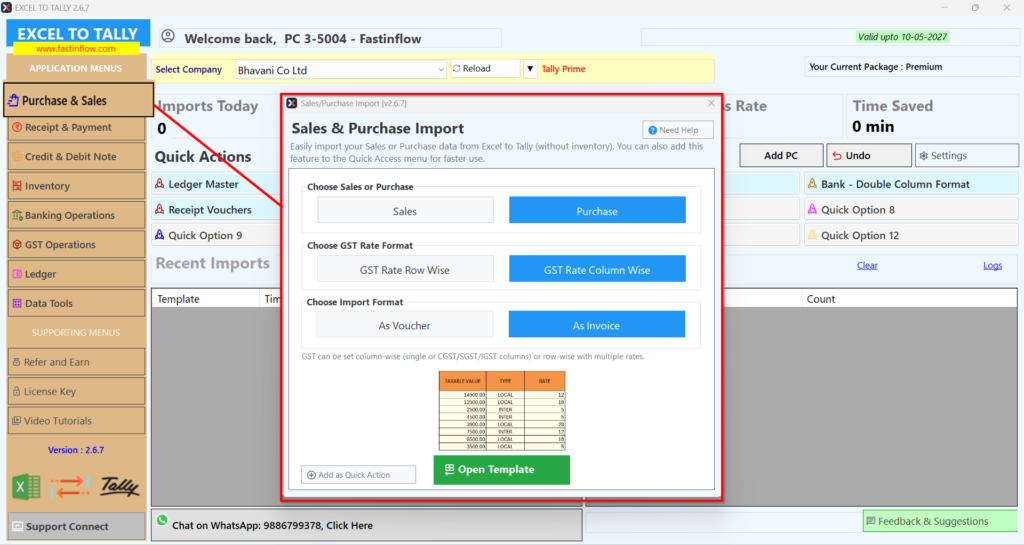
Simply click on Purchase/Sales to begin the import process.
Step 2: Select the Import Format
Choose the format that matches your Excel data.
You can import:
- Column-wise data
- Row-wise data
You can also select whether you want to import the entries in:
- Voucher Mode
- Invoice Mode
This flexibility ensures compatibility with different business requirements.
Step 3: Select the Correct Template
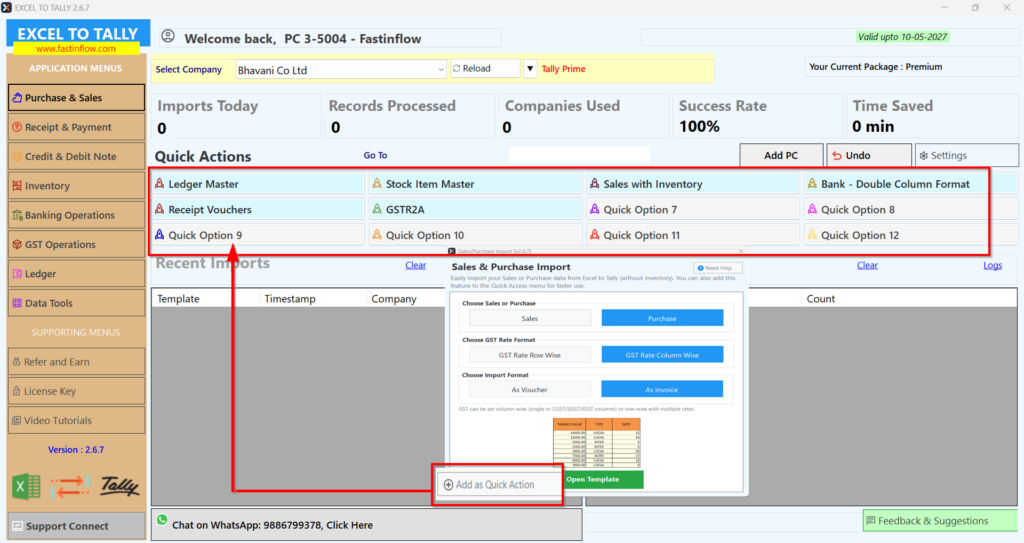
Choose the template that matches your Excel sheet and click Open Template.
If you regularly import the same format, use the Add as Quick option.
This feature allows you to open your frequently used template directly from the dashboard with just one click.
Step 4: Map Your Excel Columns
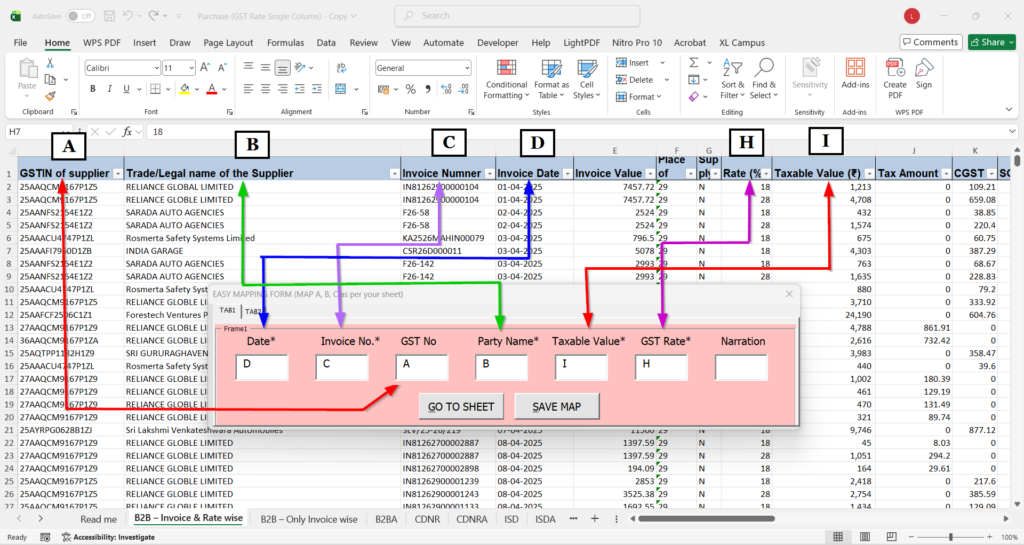
When the template opens, the Mapping Tool appears automatically.
If you’ve already mapped this Excel format previously, simply click Go to Sheet.
There is no need to map the same format again.
For a new Excel format, enter the appropriate Excel column letters.
For example:
- Date → Column D
- Invoice Number → Column C
Continue mapping the remaining fields according to your Excel sheet.
After completing the mapping, click Save Map, give it a name, and save it for future imports.
Step 5: Select Data Rows
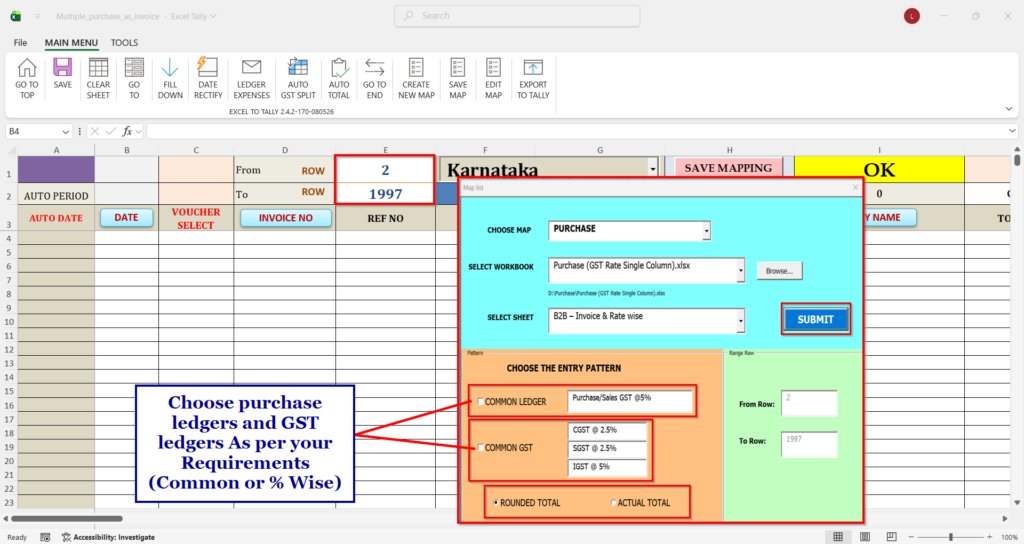
Specify the starting and ending row numbers of your Excel data.
Simply enter the From Row and To Row values and click Enter.
Step 6: Configure Purchase & GST Ledgers
Select:
- Purchase Ledger
- GST Ledgers
You can configure GST ledgers as:
- Percentage-wise GST Ledger
- Common GST Ledger
You can also configure Rounding Off according to your accounting requirements.
Click Submit.
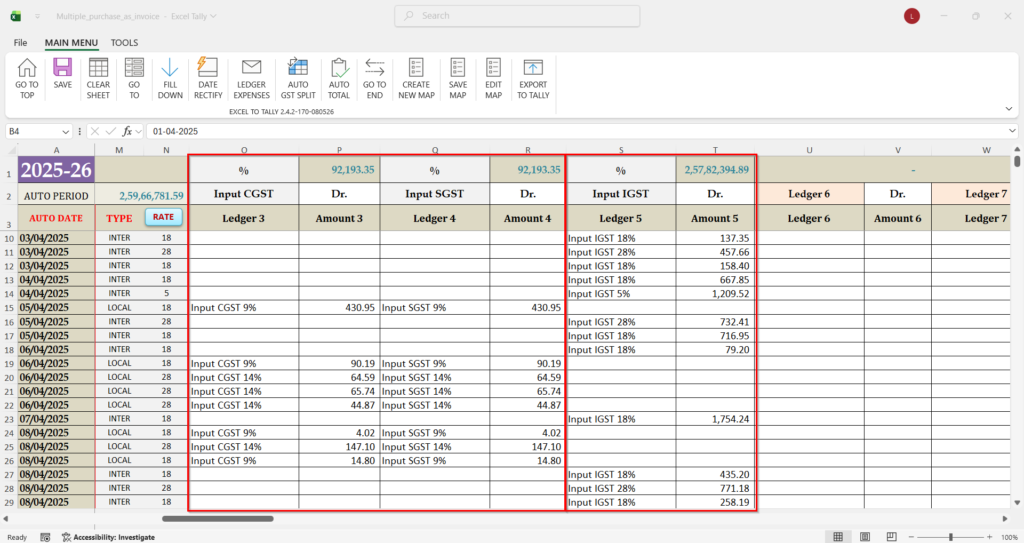
Step 7: Automatic Data Preparation
Fastinflow automatically prepares your Excel data for Tally.
The software intelligently:
- Combines multiple GST rates under the same invoice into a single voucher
- Calculates bill totals automatically
- Applies rounding-off automatically
- Generates Tally-ready data
This eliminates manual calculations and saves valuable time.
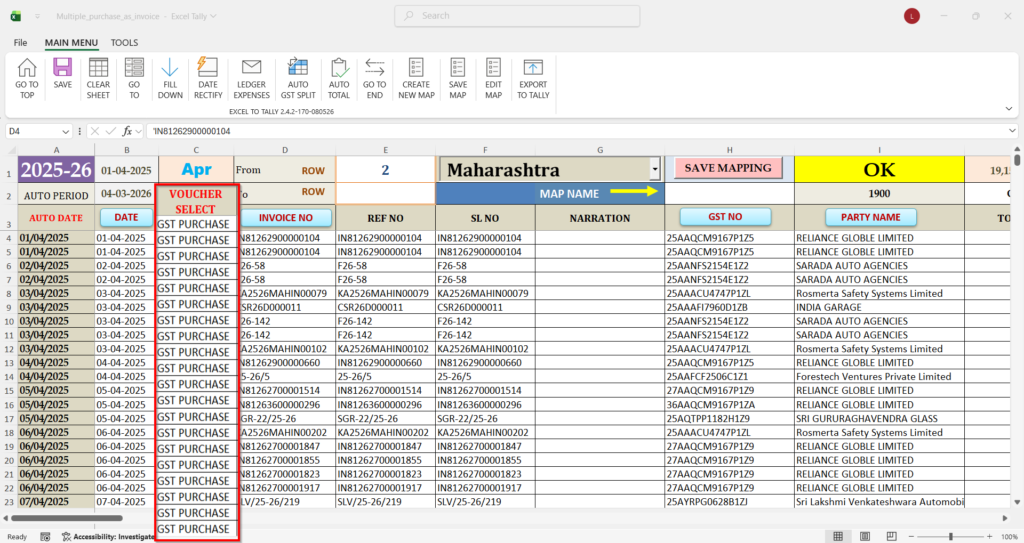
Step 8: Import Using Your Custom Voucher Format
If you have created a custom voucher type in Tally, FastInflow can use the same format during import.
Simply copy one voucher from Tally and paste it into the first row of the Fastinflow template.
The software automatically applies the same voucher structure to all imported entries.
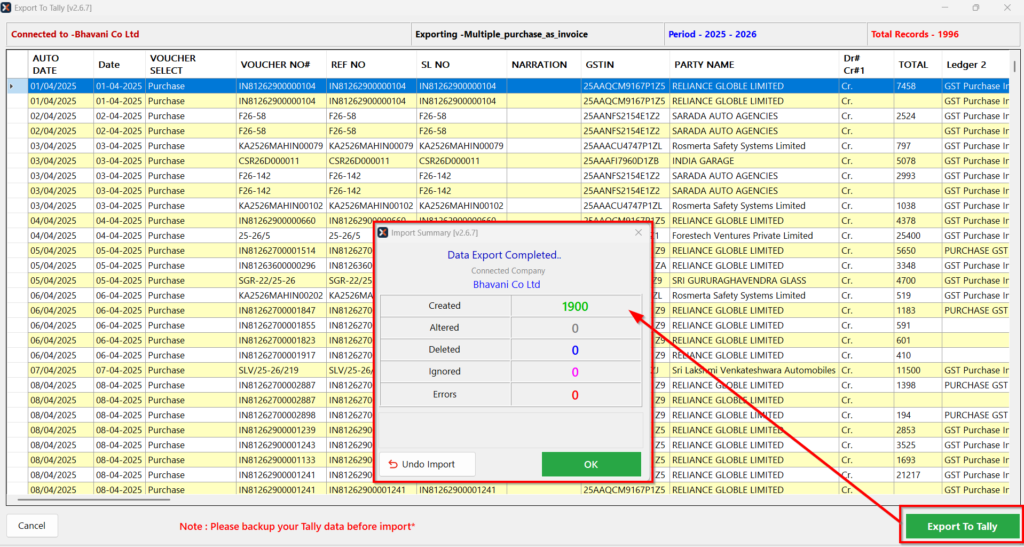
Step 9: Export to Tally
Click Export to Tally.
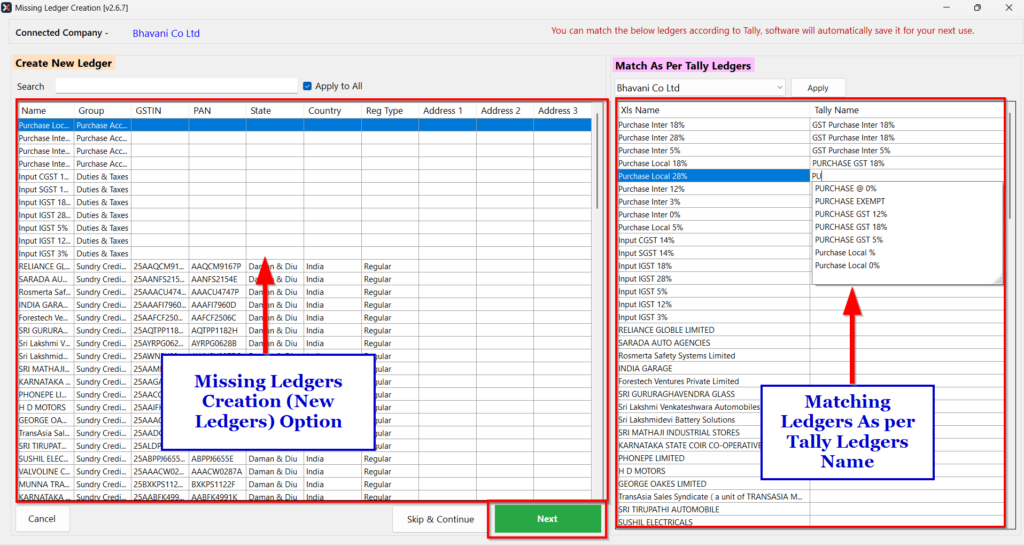
Before importing, FastInflow opens the Missing Ledger Tool.
This intelligent feature helps you:
- Detect missing ledgers automatically
- Create new ledgers in Tally
- Perform one-time ledger matching for existing ledgers with different names
Once a ledger is matched, FastInflow remembers it for future imports, eliminating repeated mapping work.
Click Next, then click Export to Tally.
Within seconds, all your Purchase Without Inventory entries are successfully imported into Tally.
Benefits of Using FastInflow
- Supports multiple Excel formats
- Automatic Tally company detection
- One-time mapping with reusable templates
- Quick Template access
- Automatic GST calculations
- Automatic invoice grouping
- Automatic rounding-off
- Missing Ledger Detection
- One-Time Smart Ledger Matching
- Faster and error-free imports
- Significant time savings
Conclusion
Importing Purchase Without Inventory entries into Tally doesn’t have to be a manual and repetitive process.
With FastInflow Excel to Tally Software, you can automate the entire workflow—from Excel mapping and GST calculations to ledger creation and final export into Tally.
Whether you’re an accountant, business owner, or Chartered Accountant managing large volumes of transactions, FastInflow helps you complete your accounting work faster, more accurately, and with minimal manual effort.
Start automating your accounting today and experience a smarter way to work with Tally.
Frequently Asked Questions (FAQs)
1. Can I import Purchase Without Inventory entries from Excel to Tally?
Yes. Fastinflow allows you to import Purchase Without Inventory vouchers directly from Excel into Tally quickly and accurately, eliminating manual data entry.
2. Does Fastinflow support different Excel formats?
Yes. Fastinflow supports both vertical GST rate formats and column-wise GST formats, allowing you to import data without modifying your Excel sheet.
3. Can I save my Excel mapping for future imports?
Yes. Once you create and save a mapping, Fastinflow remembers it. You can reuse the same mapping for future imports without mapping the Excel sheet again.
4. What happens if a ledger is missing in Tally?
Fastinflow automatically detects missing ledgers before import. You can create new ledgers instantly or perform a one-time mapping with an existing Tally ledger.
5. Can Fastinflow automatically match existing Tally ledgers?
Yes. Fastinflow supports one-time smart ledger mapping. Once a ledger is matched, the software automatically remembers it for future imports.
6. Does Fastinflow support GST calculations?
Yes. Fastinflow supports GST calculations, GST ledgers, multiple GST rates, and automatically combines invoices containing different GST percentages.
7. Can I import data using my own Tally voucher format?
Yes. Simply copy your custom voucher from Tally and paste it into the first row of the Fastinflow template. The software will automatically use the same voucher format for all imported entries.
8. Does Fastinflow support TallyPrime?
Yes. Fastinflow is compatible with TallyPrime and helps automate Excel to Tally data imports with minimal manual effort.
9. Who can use Fastinflow?
Fastinflow is ideal for Chartered Accountants, accountants, tax consultants, businesses, and finance teams that regularly import Excel data into Tally.
10. Where can I download the Fastinflow Free Trial?
You can download the latest Fastinflow Free Trial from www.fastinflow.com or contact our team to 9886799378 schedule a free live demo.
🎯 Experience Fast, Accurate & Automated Accounting
👉 Download the FREE Trial and see how Fastinflow can simplify your accounting workflow.
🔹 Download Free Trial www.fastinflow.com
🔹 Book a FREE 15-Minute Live Demo
🔹 Contact Our Support Team
📞 Call: +91 9886799378 , 8095697910
📧 Email: [email protected]
🌐 Website: www.fastinflow.com