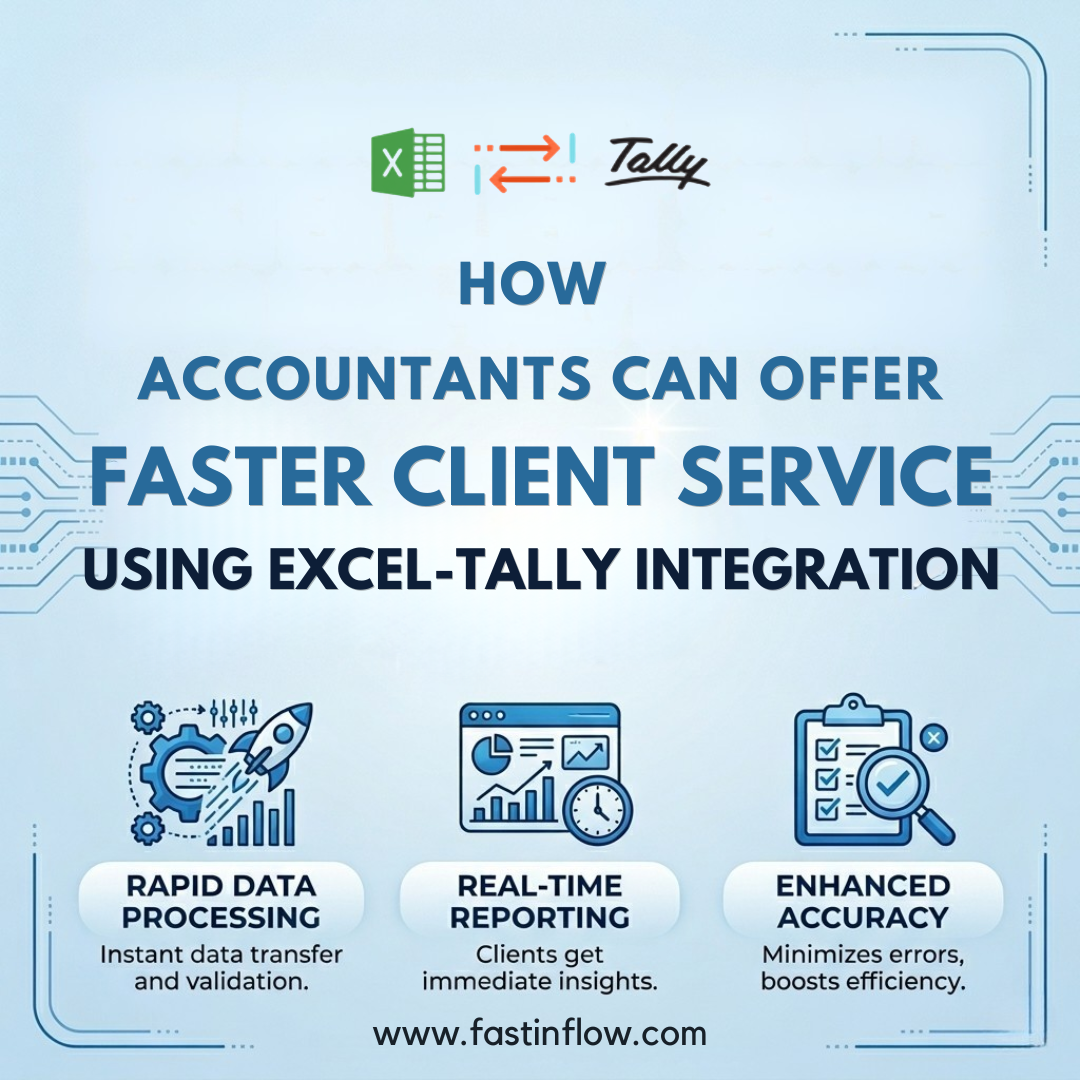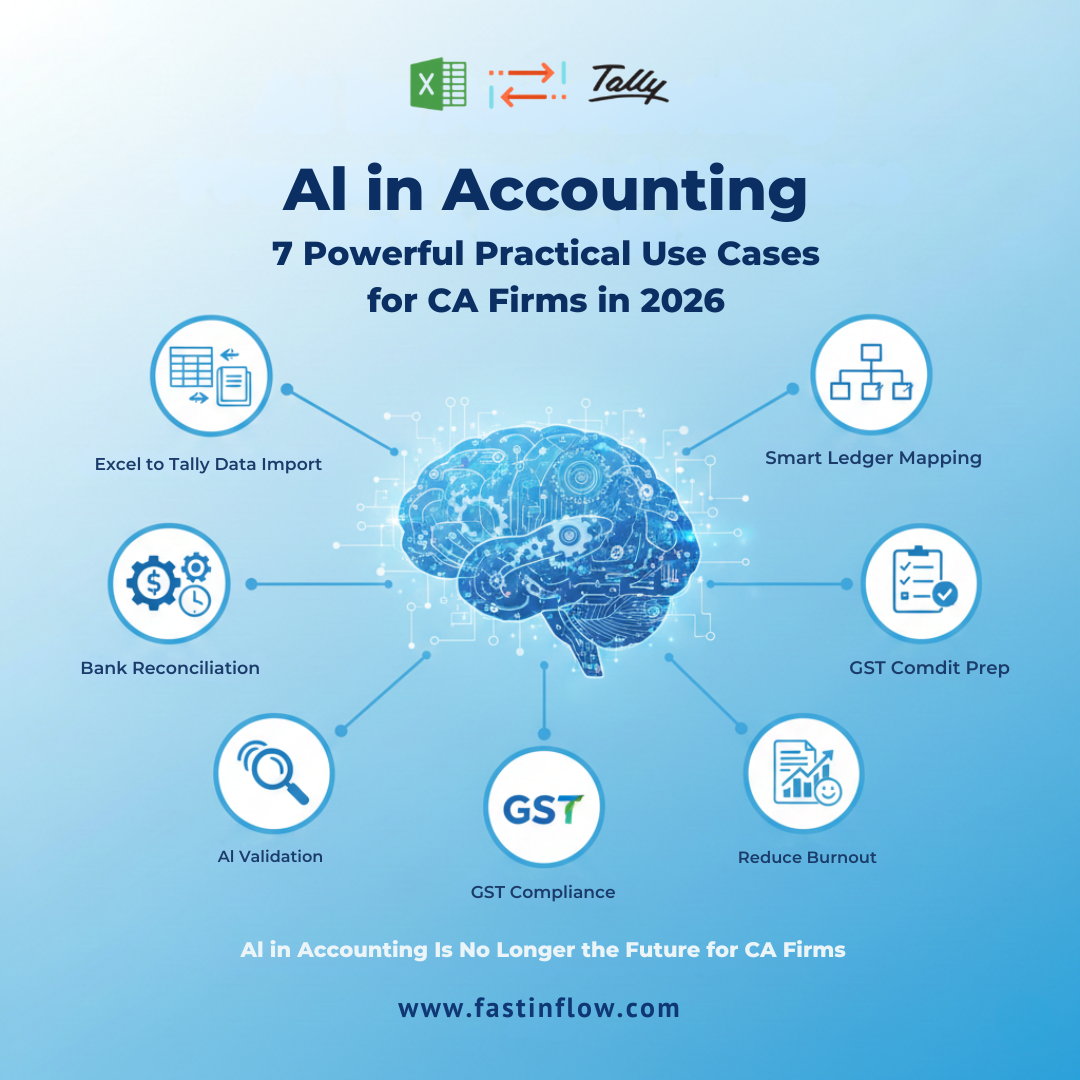
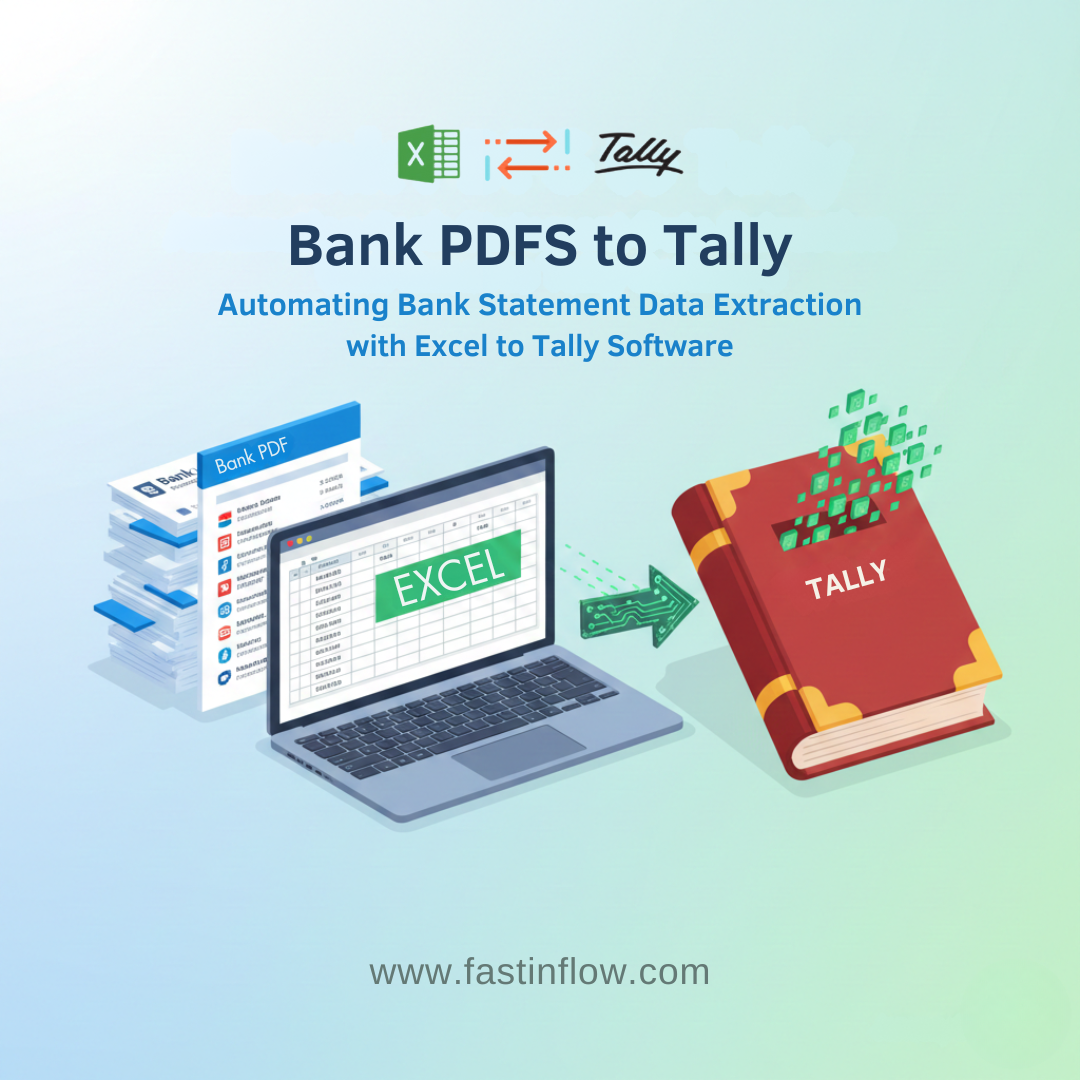
Bank statements are the backbone of accurate accounting.
But if you’re still manually entering data from bank PDF statements into Tally, you already know how painful it is—slow work, missed entries, wrong dates, and reconciliation headaches.
The good news?
You don’t need to do this the hard way anymore.
With Excel to Tally Software, and PDF To Tally Software you can automatically extract bank statement data from PDFs and import it into Tally– clean, accurate, and audit-ready.
Let’s break it down in simple terms.
The Real Problem with Bank PDF Statements
Most banks provide statements in PDF format, not Excel.
And PDFs are great for viewing—but terrible for accounting work.
Here’s what typically goes wrong:
- ❌ Copy-pasting data line by line
- ❌ Manual entry errors in amount, date, or narration
- ❌ Missing transactions during busy periods
- ❌ Hours wasted before audits or GST filing
- ❌ Difficult bank reconciliation in Tally
If you handle hundreds or thousands of transactions, this manual process becomes a serious productivity drain.
Why Automating Bank Statement Extraction Matters
Automation isn’t just about saving time—it’s about accuracy and confidence.
When bank data is extracted automatically:
- Entries match the bank exactly
- Reconciliation becomes faster
- Audit queries reduce
- Books stay clean and reliable
That’s where Excel-to-Tally software changes the game.
How Excel to Tally Software Handles Bank PDFs
Excel to Tally Software is designed for real-world accounting workflows, not just ideal data formats.
Here’s how it works step-by-step:
1️⃣ Upload Your Bank Statement PDF
You can upload bank PDFs from:
- HDFC
- ICICI
- SBI
- Axis
- Other major Indian banks
No manual formatting required.
2️⃣ Automatic Data Extraction
The software intelligently reads the PDF and extracts:
- Date
- Narration
- Debit amount
- Credit amount
- Balance (if available)
Even long narrations and multiple pages are handled smoothly.
3️⃣ Clean & Structured Excel Output
The extracted data is converted into a Tally-ready Excel format:
- Proper columns
- Clean amounts
- No broken rows
- Ready for import
You can review, edit, or validate before importing.
4️⃣ Import Directly into Tally
Using Excel to Tally:
- Import entries as bank vouchers.
- Auto-detect Contra entries
- Maintain narration accuracy
- Avoid duplicate entries
Result?
📊 Perfectly matched bank data inside Tally
Why Excel to Tally Is Better Than Manual Methods
| Manual Process | Excel to Tally Automation |
| Time-consuming | Done in minutes |
| High error risk | Accurate & consistent |
| Stress during audits | Audit-ready books |
| Difficult reconciliation | Smooth bank matching |
For CAs, accountants, and finance teams, this is not just convenience—it’s a necessity.
Who Should Use Bank PDF Automation?
This solution is ideal for:
- Chartered Accountants
- Accounting firms
- Finance managers
- Businesses with multiple bank accounts
- Anyone handling frequent bank reconciliations
If your work involves monthly bank statements, this automation pays for itself quickly.
Conclusion-
Bank PDFs shouldn’t slow you down.
With Excel to Tally Software, you can move from static PDFs to live Tally data without manual effort.
No copy-paste.
No missing entries.
No reconciliation stress.
Just clean, accurate bank data—imported in minutes.
Want to automate your bank statement import into Tally?
Explore PDF to Tally Software and experience faster, smarter accounting.